I wanted to publish the same short video to TikTok that I had just published on my WordPress site. My first attempt was to drive TikTok’s upload screen with automation. I tried seven times. It failed seven times.
It always stopped at the same place: choosing the video file. That button looks like an ordinary button, but it opens the operating system’s file picker, and nothing outside the browser can reach into it. That wall never moved.
So I went through the front door instead: TikTok’s official Content Posting API — the supported way for a site to publish a video to its own account. Using it requires passing TikTok’s App Review.
That review will almost never pass on the first attempt. I got stuck in seven places. Here they are, in order, with what actually fixed each one.
The seven places people get stuck
1. A 404 right after authorization
After the user approves on TikTok’s screen, they are sent back to a fixed page on your site. That page has to exist and be reachable. Mine existed — as a draft. A draft page is not public, so the redirect lands on a 404.
Fix: publish the callback page. That is the whole fix.
2. Terms and Privacy get you rejected
You submit URLs for both. Pointing at your homepage or a blog index is rejected. Make one dedicated page for each. Cover what the app does, what data it receives, how that data is used, stored and deleted, and how to contact you. That is enough.
3. “Verification signature not found”
You have to prove the domain is yours. The straightforward route is a DNS TXT record — one line added to your domain’s records.
Click Verify right after adding it and you get that red error. I re-checked my settings several times. They were correct. DNS changes simply take a few minutes to propagate.
Fix: wait a few minutes and click Verify again. A failed attempt breaks nothing.
4. Leaving products and scopes you do not use
There are many to choose from and it is tempting to tick extras. Anything you attach but do not use invites questions and slows the review down. Keep it to the minimum you actually call.
5. Forgetting to add a target user to the sandbox
Before review you demonstrate the flow in a sandbox. The sandbox needs a target user registered separately — which account you will test against. Skip it and authorization succeeds while posting quietly fails. This one is hard to diagnose.
6. The big one: you can only post to a private account
Everything is ready, you post, and you get unaudited_client_can_only_post_to_private_accounts.
It means exactly what it says: before approval, an app can only post to a private account. Nothing is broken. If you assume your own code is at fault here, you will spend hours fixing something that was never wrong.
Fix: make the target account private for the duration of the test. Two sub-traps: a Business account cannot be private (switch to Personal first), and the Private toggle is blocked while “ad authorization” is on (turn it off first). Both are in the TikTok mobile app. Switch everything back when you are done.
7. The demo video shows the wrong domain
You submit a screen recording of the flow. If the site address visible on screen differs from the Website URL you registered, it gets rejected. Obvious in hindsight, easy to trip over when you record on a staging domain.
Result
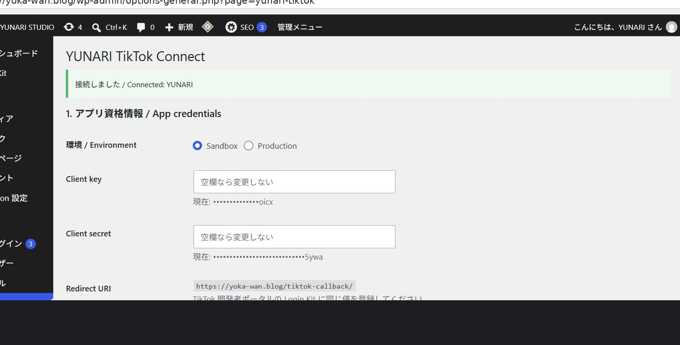
Past all seven, the sandbox post reached PUBLISH_COMPLETE. The app is submitted and currently in review. The setup itself took 30–60 minutes; the rest is waiting.
If you are doing this today
- Create the callback page and publish it
- Write dedicated Terms and Privacy pages
- Verify the domain by DNS. If the first Verify fails, wait a few minutes and click again
- Attach only the products and scopes you call
- Register your own account as a sandbox target user
- Before the test post, set the account to Personal + ad authorization off + Private
- Record the demo on the domain you registered
Follow that order and you avoid every hole I fell into.
The full record — this path written out step by step — ships with a WordPress plugin that posts to your own TikTok account from the WordPress admin.
YUNARI TikTok Connect — WordPress plugin (¥5,800, one-time)
TikTok decides the review outcome. We provide the path and a worked example, not a guarantee. 日本語版はこちら

コメント